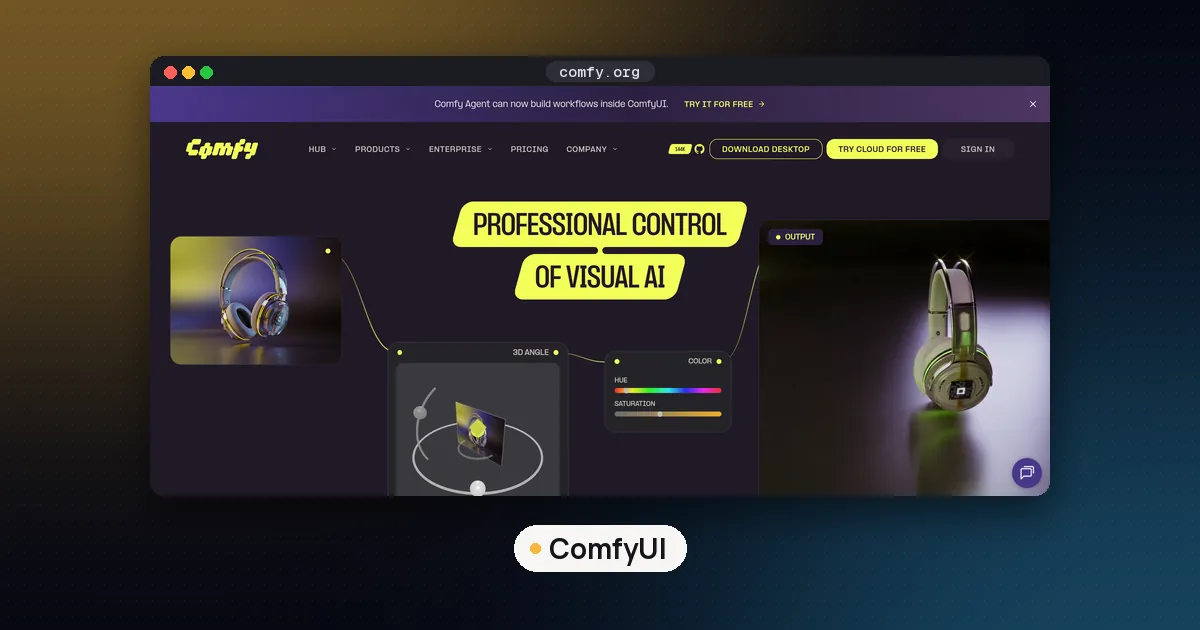
How to run ComfyUI on Mac: install the free Comfy Desktop app for macOS, or clone ComfyUI and install PyTorch with Metal (MPS) support in a Python environment. Then put your model files in the models folder and start the server. You need an Apple Silicon Mac (M1 or later), and more unified memory lets you load bigger image models.
ComfyUI is the node based app most people use to run open image and video models locally. On a Mac it runs through PyTorch and Apple's Metal Performance Shaders backend, not through Apple's MLX framework. This guide covers both install routes, the folder layout, what fits in memory and the errors Mac users hit most often. Every version and requirement below was checked against the ComfyUI repository, the Comfy docs, Apple's developer page and PyPI on October 27, 2026, when the latest ComfyUI release was v0.43.0.
What you need
| Requirement | Comfy Desktop | Manual install |
|---|---|---|
| Chip | Apple Silicon, M1 or later | Apple Silicon (PyTorch publishes no current Intel Mac builds) |
| macOS | 13 Ventura or later | 14.0 or later for current PyTorch |
| Python | bundled by the app | 3.13 recommended, 3.12 as a fallback |
| Disk | at least 4.85 GB per installation, plus models | the repository, PyTorch and your models |
| Extra tools | none | Git and the Xcode command line tools |
| Browser | not needed, the app has its own window | Chrome 143 or later recommended |
The macOS rows come from two sources. The Comfy Desktop macOS page lists macOS 13 and Apple Silicon. Apple's Accelerated PyTorch training on Mac page lists macOS 14.0, Python 3.10 or later and the Xcode command line tools for PyTorch, and the current PyTorch 2.14.1 Mac wheels on PyPI are built for macOS 14 on arm64 only. If you are still on Ventura, the Desktop app is the simpler path.
Model files are the real space cost. A single FLUX.1 model file is 23.8 GB, so plan for tens of gigabytes of free disk once you add a few models.
Option 1: Comfy Desktop
The ComfyUI README calls the desktop app the easiest way to start on Windows and Mac. Comfy Desktop is a launcher that manages one or more ComfyUI installations, each with its own Python environment, so you never touch the terminal.
- Download the macOS installer from comfy.org/download. The page detects your platform.
- Open the
.dmgfile and drag Comfy Desktop into Applications. - Launch it from Launchpad or Spotlight.
- If macOS shows a security warning on first launch, open System Settings, then Privacy & Security, and click Open Anyway.
- Create an installation in the app and let it download its dependencies.
Desktop installs follow the stable ComfyUI release by default, according to the Comfy system requirements page. If you want every new commit, switch the instance update channel to Latest or use a manual install.
The app keeps your data outside the app itself. Installations live in ~/ComfyUI-Installs, the shared model library and outputs in ~/ComfyUI-Shared, settings in ~/Library/Application Support/Comfy Desktop and logs in ~/Library/Logs/Comfy Desktop. Deleting the app from Applications removes only the launcher, so those folders (and your models) stay until you delete them.
Option 2: manual install with Python and MPS
A manual install gives you the newest code and full control over custom nodes. The ComfyUI README gives four steps for Apple Silicon: install a recent PyTorch build following Apple's guide, follow the manual install steps, install the dependencies, and launch with python main.py.
Install the Xcode command line tools first:
xcode-select --installCreate an isolated environment. The Comfy manual install guide uses Miniconda:
conda create -n comfyenv python=3.13
conda activate comfyenv
Install PyTorch. The ComfyUI README asks Mac users for the latest nightly, which Apple's page says has the latest MPS support:
pip3 install --pre torch torchvision torchaudio --extra-index-url https://download.pytorch.org/whl/nightly/cpuThe stable build (pip3 install torch torchvision torchaudio) also includes MPS. Despite the cpu in the nightly URL, both builds use the Mac GPU. Check that Metal is visible:
python -c "import torch; print(torch.backends.mps.is_available())"It should print True. Now clone ComfyUI, install its requirements and start it:
git clone https://github.com/Comfy-Org/ComfyUI.git
cd ComfyUI
pip install -r requirements.txt
python main.py
Open http://127.0.0.1:8188 in your browser. That address and port are ComfyUI's defaults in its command line options. To update later, run git pull in the ComfyUI folder and install the requirements again.
If you prefer a helper, the README also documents comfy-cli: pip install comfy-cli, then comfy install.
Why ComfyUI uses MPS and not MLX
The Comfy system requirements FAQ says ComfyUI does not use MLX directly. On Apple Silicon it runs on PyTorch's MPS backend, which uses Metal for GPU acceleration. MLX is a separate Apple array framework, popular for text models; our MLX vs GGUF on Mac guide covers that side.
Where model files go
ComfyUI reads models from subfolders of ComfyUI/models. The ones you will use most:
| Folder | What goes in it |
|---|---|
models/checkpoints | all in one checkpoints, such as most Stable Diffusion files |
models/diffusion_models | standalone diffusion transformers, such as FLUX files |
models/text_encoders | text encoders that newer models load separately |
models/vae | VAE files |
models/loras | LoRA adapters |
models/controlnet | ControlNet models |
models/upscale_models | upscalers |
Newer models usually ship as several files (diffusion model, text encoder and VAE), and the model card or workflow template tells you which folder each one belongs in. With Comfy Desktop, the shared library in ~/ComfyUI-Shared holds models that every installation can use.
To share one model folder between several installs or apps, copy extra_model_paths.yaml.example in the ComfyUI root to extra_model_paths.yaml and add your paths. The Comfy manual install guide shows the format: a base_path plus one line per folder type, such as loras: models/loras/.
Which image models run well on a Mac
On Apple Silicon the CPU and GPU share one pool of memory, so the GPU can load models larger than many graphics cards hold. Two limits apply. macOS, your browser and other apps share that same memory, and macOS caps how much memory the GPU can wire by default. Leave headroom beyond the file size.
The table uses the published file sizes from the Hugging Face model cards. The memory figures on those cards are measured on NVIDIA GPUs, and neither Black Forest Labs nor ComfyUI publishes Mac generation times, so we do not quote any.
| Model | Main file | License | Card memory figure (NVIDIA) |
|---|---|---|---|
| FLUX 3 Image Klein | 11.1 GB BF16, 5.8 GB int8 | FLUX Kommunity License | 8 GB cards for int8 |
| FLUX.2 klein 4B | 7.8 GB BF16 | Apache 2.0 | about 13 GB |
| FLUX.2 klein 9B | 18.2 GB BF16 | FLUX Non Commercial | about 29 GB |
| FLUX.1 schnell | 23.8 GB BF16 | Apache 2.0 | not stated |
A practical reading of that table:
- 16 GB Mac: start with FLUX.2 klein 4B or the int8 FLUX 3 Klein file, and close other heavy apps while you generate.
- 24 to 36 GB Mac: the BF16 FLUX 3 Klein and klein 4B files load with room for the text encoder.
- 64 GB and up: FLUX.2 klein 9B and the 12B FLUX.1 models become realistic.
Skip files in NVFP4, a number format made for NVIDIA Blackwell GPUs. The plain BF16 file is the safest choice on a Mac. For licenses and the full model list, see our FLUX open weights guide, and for other model families our best local image generation models roundup. If you would rather script generation than use nodes, Diffusers also runs on the mps device.
Fixing common Mac errors
macOS will not open Comfy Desktop. Use Open Anyway under System Settings, Privacy & Security, as the Comfy docs describe.
torch.backends.mps.is_available() prints False. Check that Python runs natively: python -c "import platform; print(platform.machine())" should print arm64. Current PyTorch Mac wheels exist for arm64 only, so a Python built for Intel (running under Rosetta) cannot get a Metal build. Also confirm macOS 14 or later.
An operator "is not currently implemented for the MPS device". Some PyTorch operations still lack Metal kernels; Apple's page says the MPS backend is in beta. The PyTorch MPS environment variables page documents PYTORCH_ENABLE_MPS_FALLBACK=1, which runs those operations on the CPU instead. Start ComfyUI with PYTORCH_ENABLE_MPS_FALLBACK=1 python main.py. It is slower for those steps but lets the workflow finish.
Black or blank images. ComfyUI's command line help says --fp16-vae might cause black images and suggests --force-upcast-attention as a possible fix. Try python main.py --force-upcast-attention, or run the VAE in full precision with --fp32-vae.
Out of memory errors. The PyTorch allocator stops at a high watermark (default ratio 1.7). You can change it with PYTORCH_MPS_HIGH_WATERMARK_RATIO, but the PyTorch docs warn that setting it to 0.0 disables the limit and may cause system failure. A smaller model or a lower resolution is the better fix.
Everything runs on the CPU and is very slow. Make sure you did not start with --cpu, and that you installed PyTorch inside the same environment you launch ComfyUI from.
FAQ
Does ComfyUI work on Apple Silicon?
Yes. The ComfyUI README lists Apple Silicon in its manual install support, and Comfy Desktop ships a macOS build for M1 and later chips. It uses PyTorch's MPS backend for GPU acceleration.
How much memory do I need for FLUX on a Mac?
There is no official Mac figure. Go by file size plus headroom: the FLUX.2 klein 4B BF16 file is 7.8 GB and the int8 FLUX 3 Klein file is 5.8 GB, which suit a 16 GB Mac, while the 23.8 GB FLUX.1 files are better on 64 GB or more.
Is ComfyUI slower on Mac than on an NVIDIA GPU?
Expect it to be slower, but no official comparison exists. ComfyUI's install docs give NVIDIA users dedicated CUDA 13.0 PyTorch builds, and Apple describes the MPS backend as beta, so some operations fall back to the CPU. We do not quote unofficial timings.
Can ComfyUI run on an Intel Mac?
Not in a supported way. Comfy Desktop requires Apple Silicon, and the last official PyTorch release with Intel Mac wheels was 2.2.2, while ComfyUI asks for PyTorch 2.7 or newer. Comfy Cloud or a Windows or Linux PC are the alternatives.
Is ComfyUI free?
Yes. ComfyUI is open source under the GPL 3.0 license and the desktop app is a free download. You pay only for optional extras such as Comfy Cloud or paid partner nodes that call closed models.
Should I use Comfy Desktop or the manual install?
Use Desktop if you want the stable release with no terminal work. Choose the manual install if you need the newest commits, use many custom nodes, or want to pick your own PyTorch nightly.